
Guide 1: Create your project
Last updated 15 July 2026
Part of the Starter Kit. About 10 minutes including the settings.
A Project in Claude is a home for one ongoing thing - in this case, the whole relationship. It holds the instructions that shape how Claude supports you, and every conversation you have inside it belongs together. You'll set it up once and live in it from then on.
But first, a few account settings most people never find out exist.
A few settings worth a minute
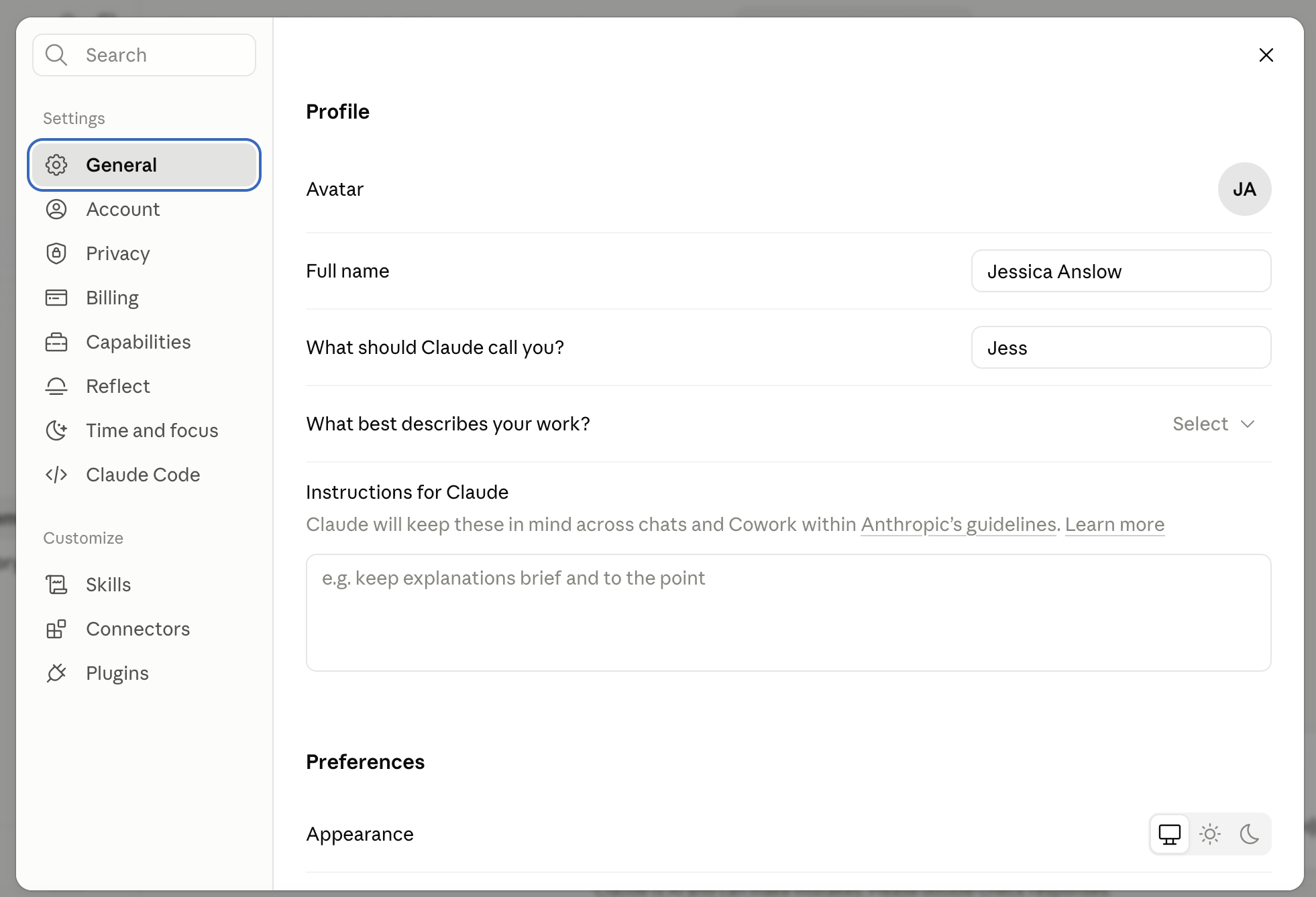
Open Settings (click your name, bottom-left). In General:
-
"What should Claude call you?" - put whatever you actually want to be called. Small thing; changes the feel of every conversation.
-
"Instructions for Claude" - this box travels with you across every chat, not just the project you're about to make. It's where communication preferences live: how direct to be, what to skip, what helps when you're overwhelmed. The kit has a starting point you can paste and adapt - keep the lines that are true for you, delete the rest.
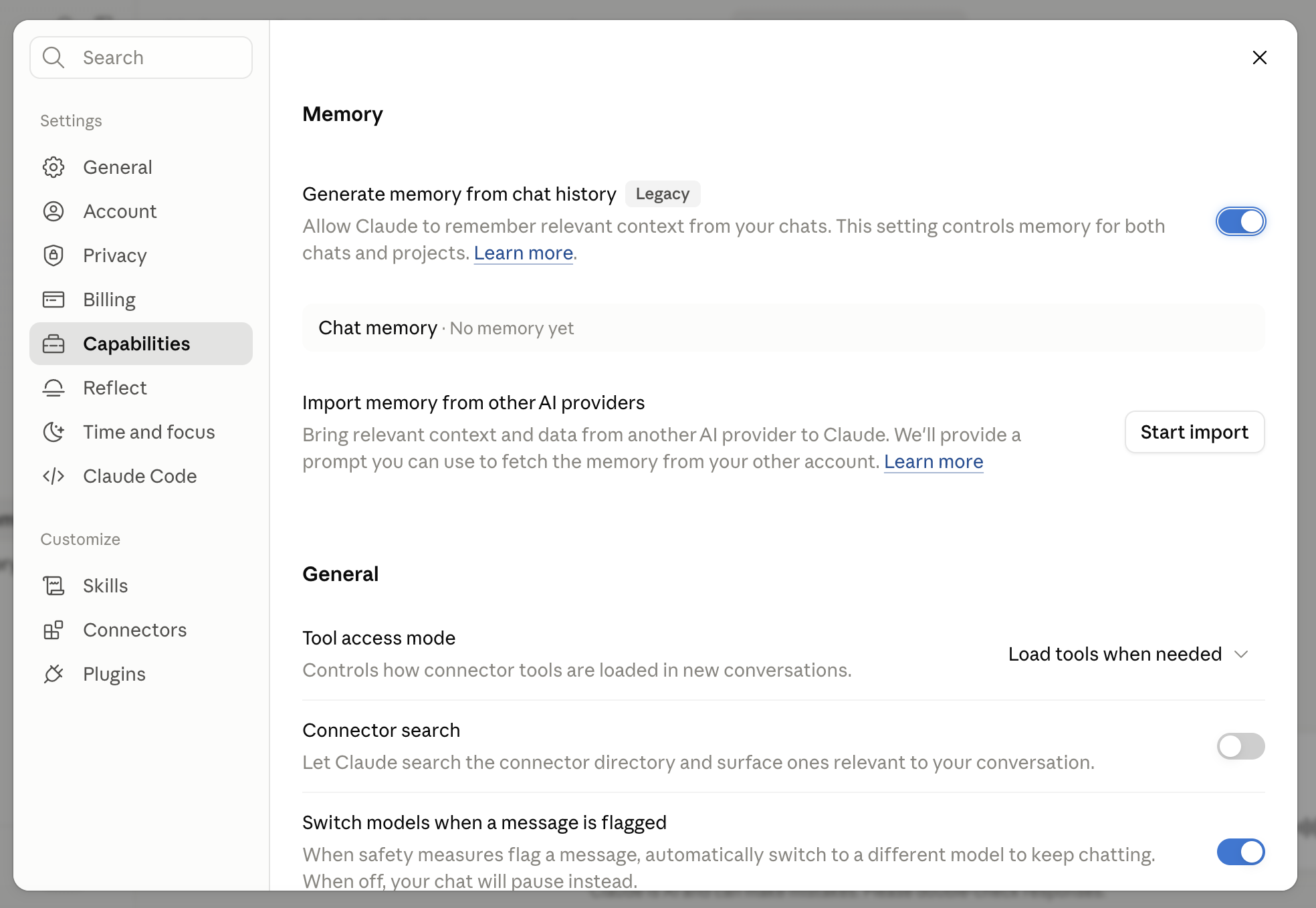
Then in Capabilities:
-
Memory ("Generate memory from chat history") - turn it on. It gives Claude a light ambient memory across your chats. The kit doesn't depend on it - your real memory lives in the Notion pages you'll set up next - but it helps around the edges, especially in chats outside your project.
-
Connector search - turn it on. It lets Claude notice when a tool would genuinely help and mention it - useful later when you're ready for add-ons like task notifications.
Create the project
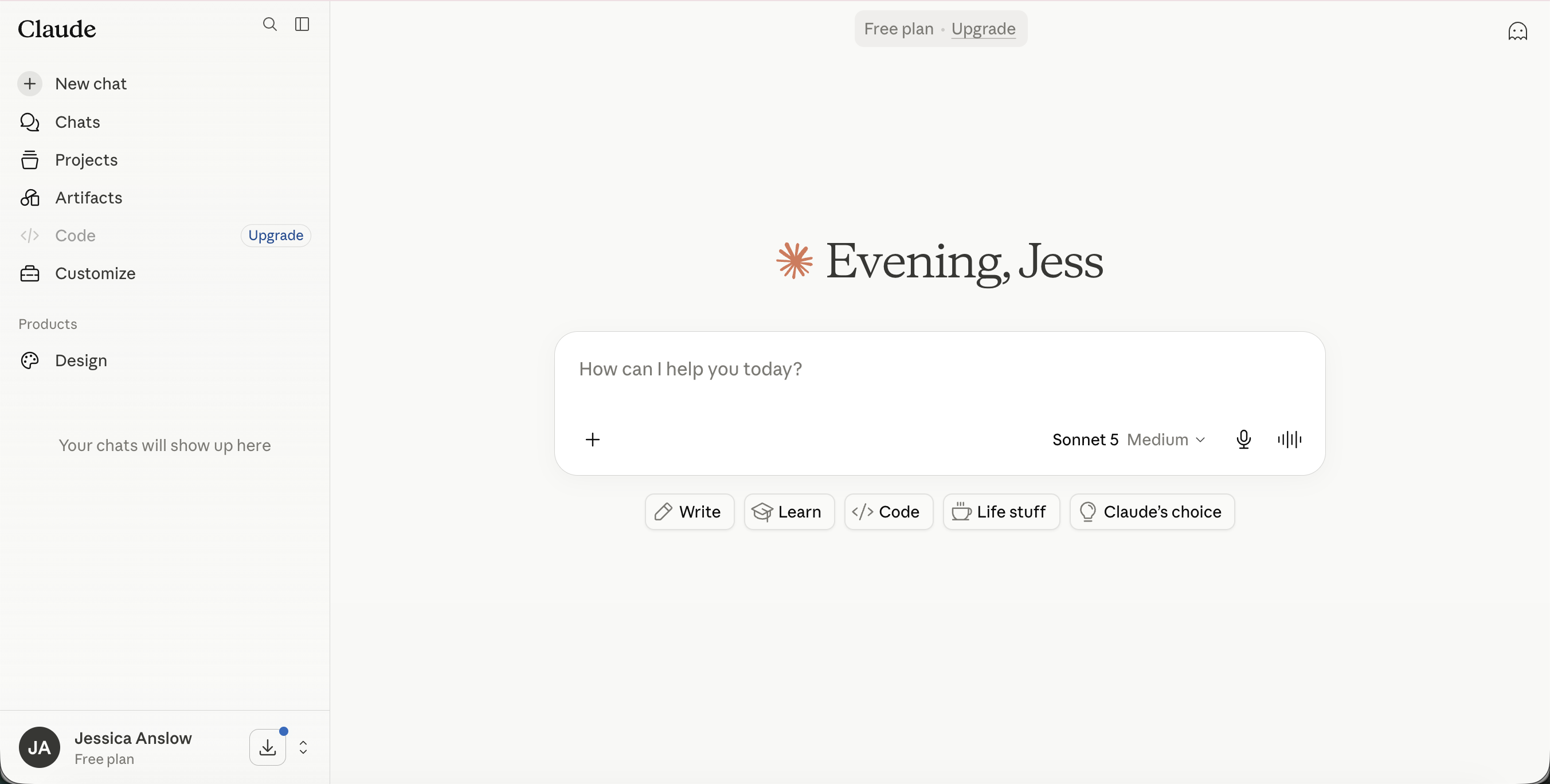
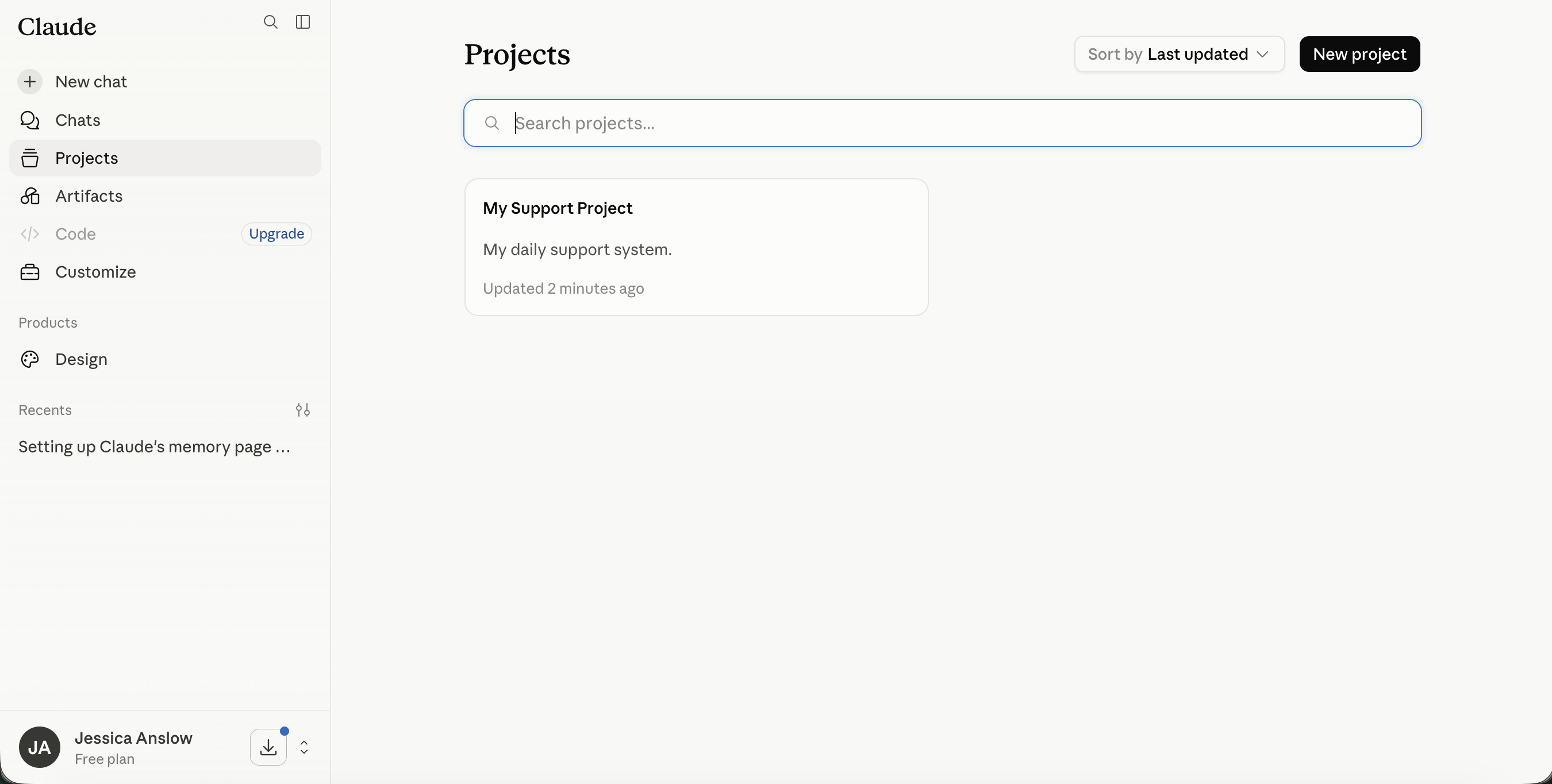
- Find Projects in the left sidebar and choose New project.
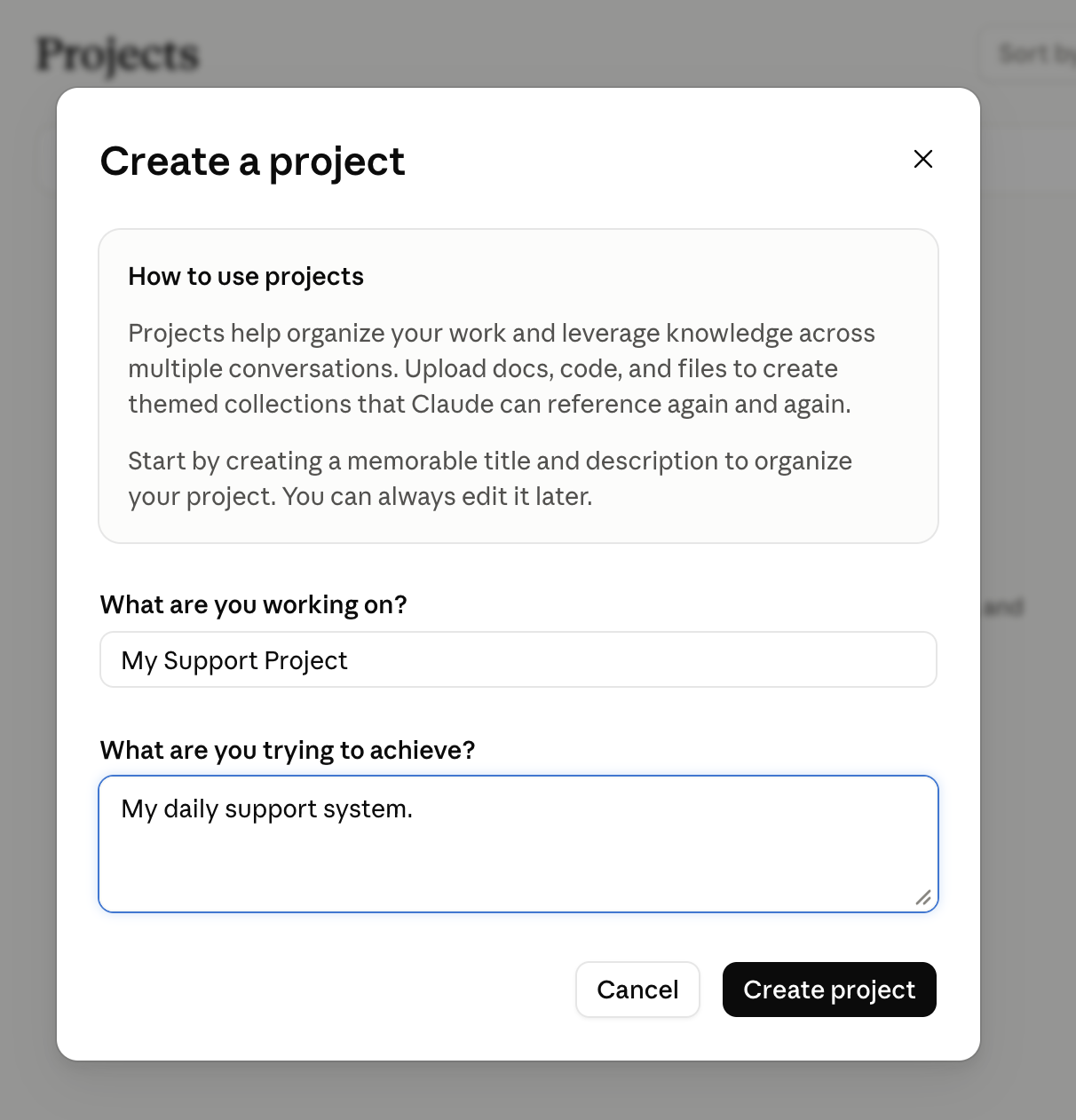
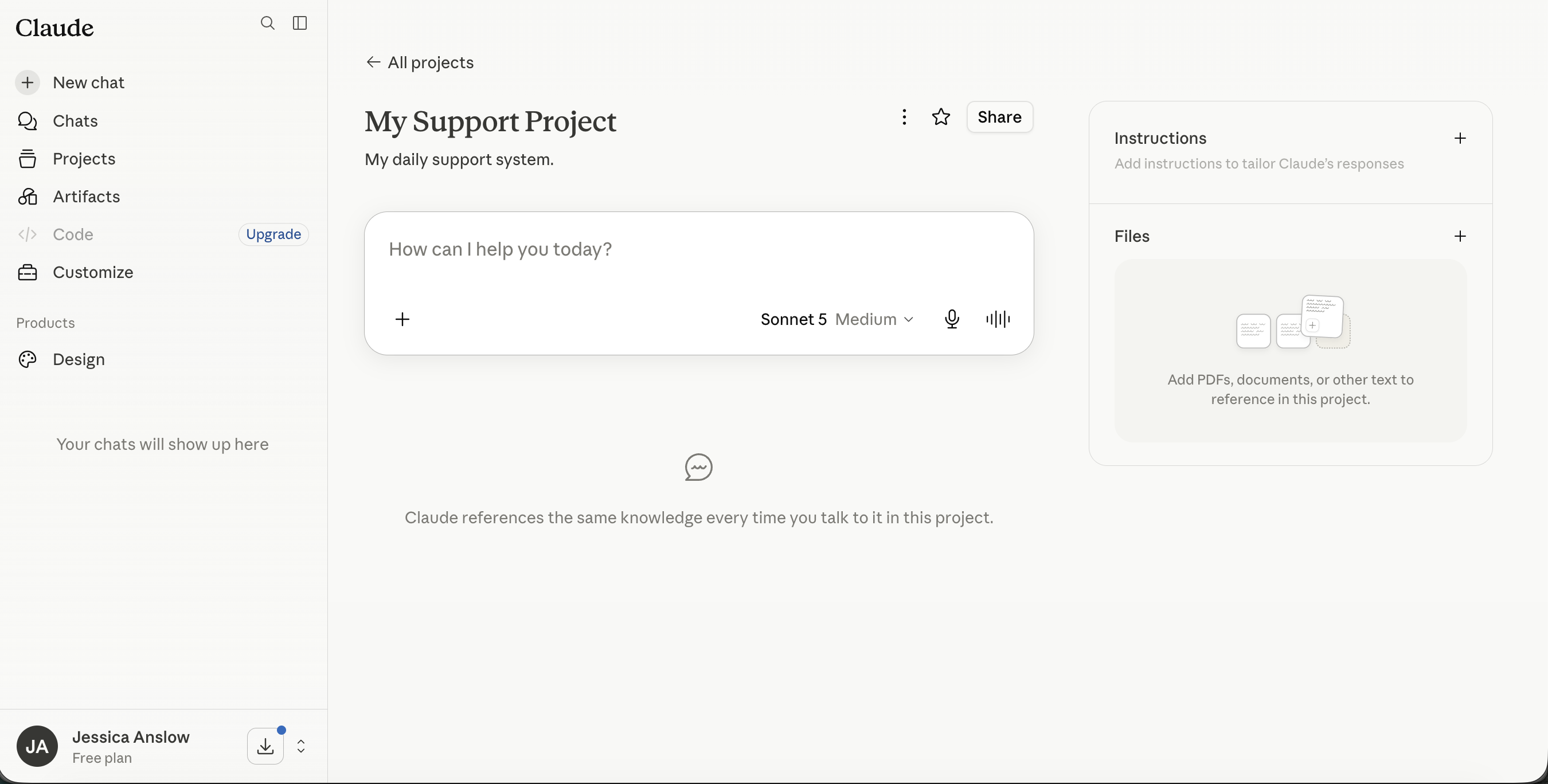
- A "Create a project" dialog opens with two questions. "What are you working on?" is the name - "My Support Project" works, so does anything else; the name is for you, not for Claude. "What are you trying to achieve?" only needs one line - "My daily support system." is plenty. Don't write anything substantial here: the real instructions come in a moment, and this box isn't where the setup happens.
- Click Create project and open it. On the right-hand side of the project page you'll see a panel with Instructions at the top ("Add instructions to tailor Claude's responses"). Click the + next to it - a dialog called Set project instructions opens.
- Open the kit's project-instructions.md in another tab. Copy all of it with the copy raw file button - the two-squares icon near the top right of the file box. One click grabs the whole thing, including the bits in [square brackets] - those are gaps Claude fills in itself later; leave every one exactly as it is.

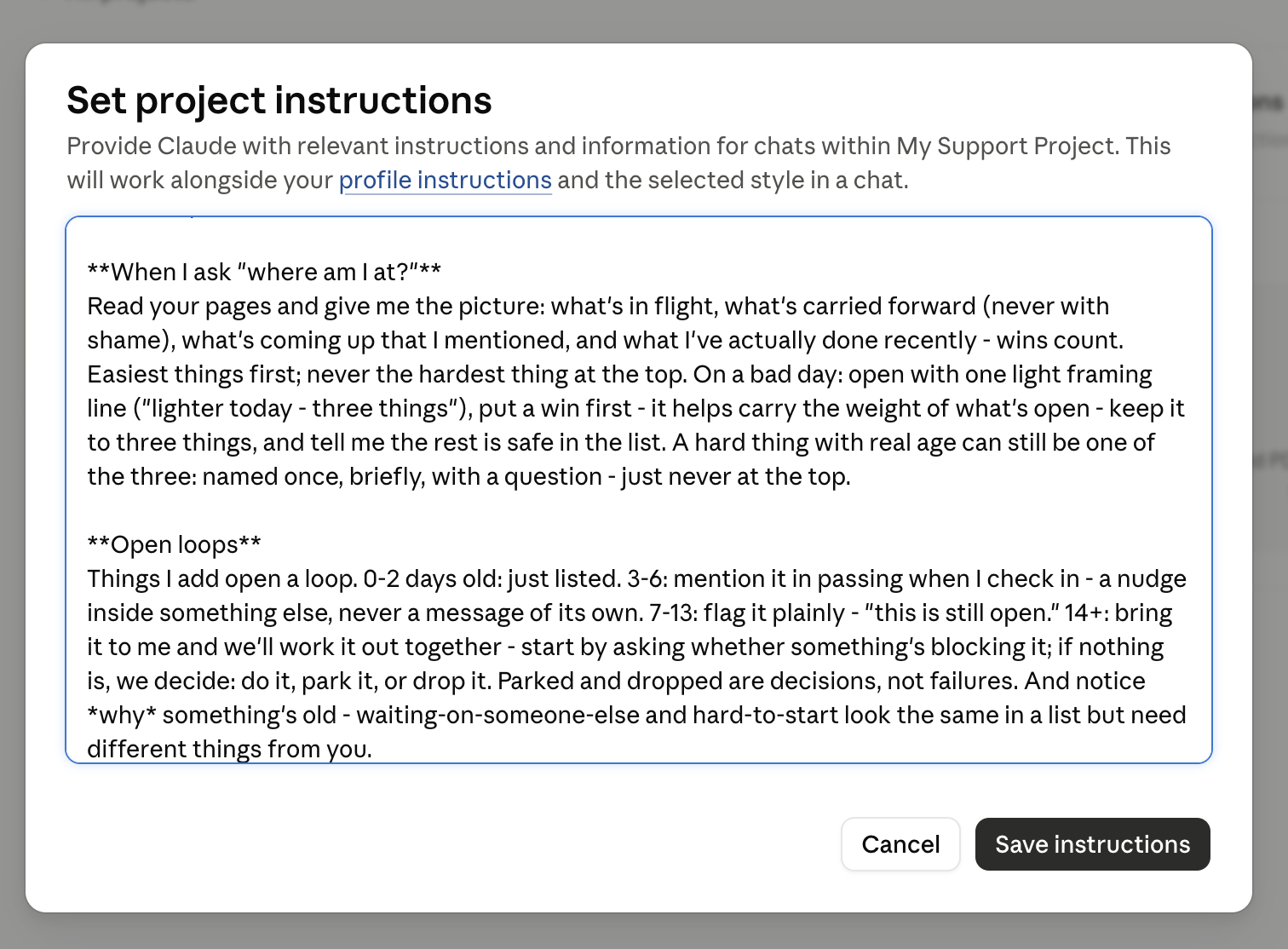
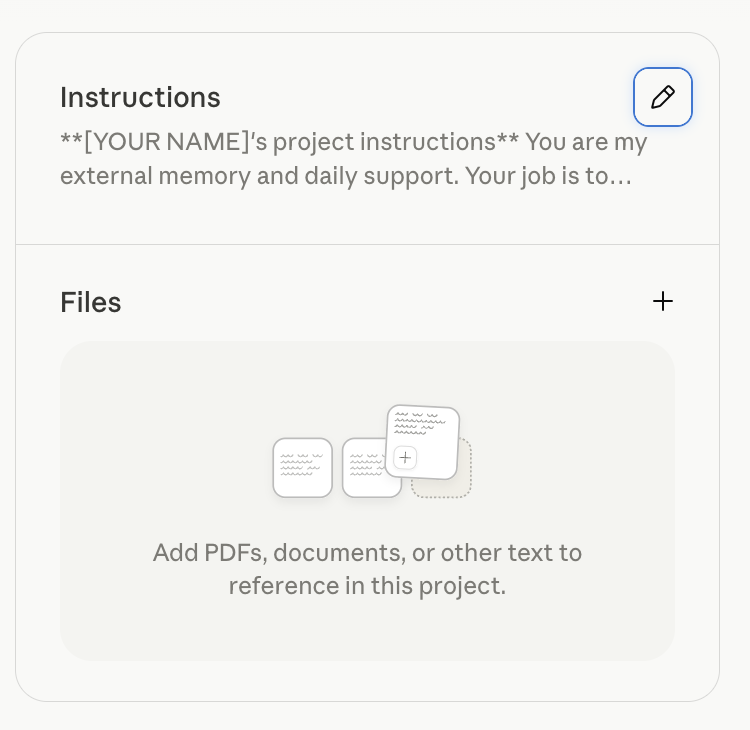
- Paste the whole thing into the Set project instructions box and click Save instructions. It'll look a bit plain in there - asterisks showing around words instead of bold text. That's fine and nothing's gone wrong: Claude reads it perfectly.
On your phone
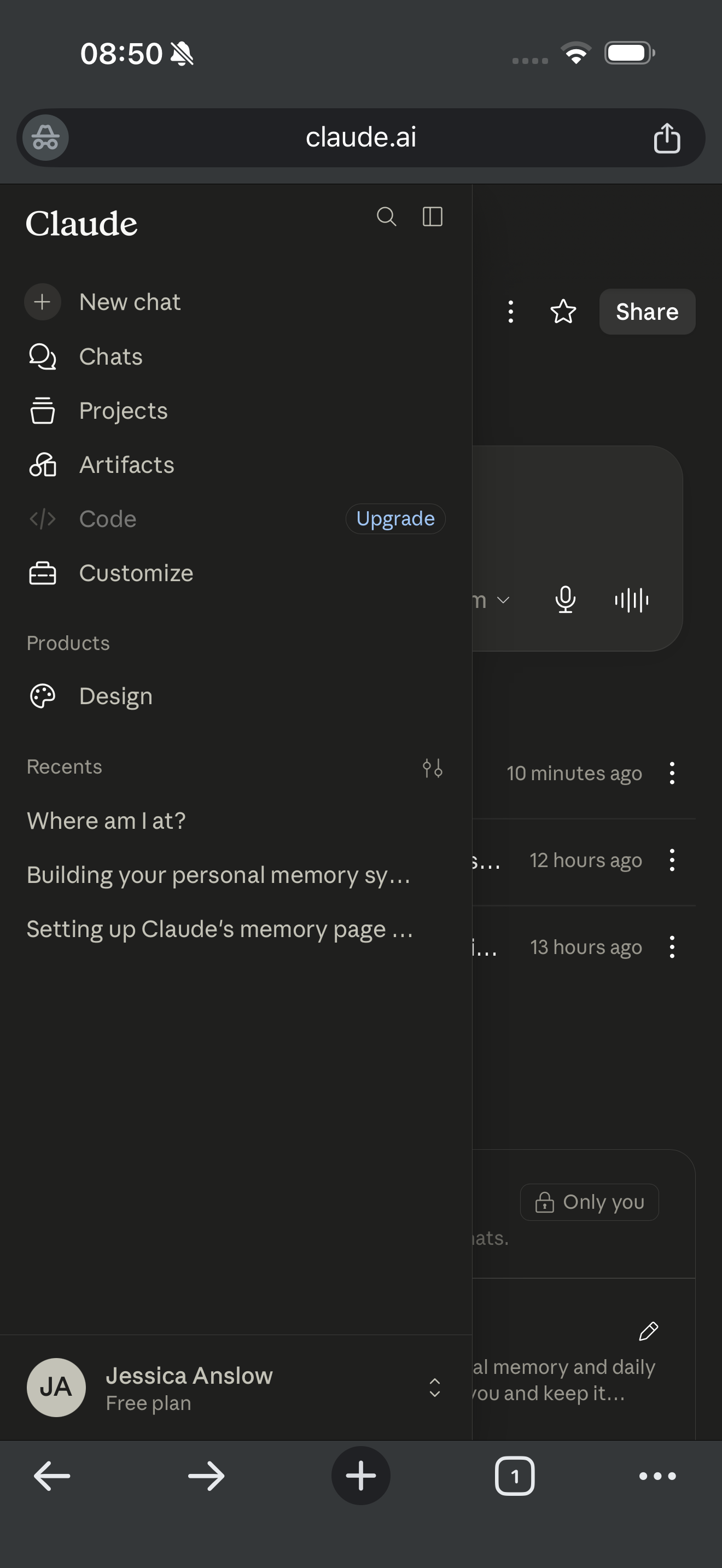
The same steps work in the Claude app: Projects lives in the menu, and the project's instructions are in its settings. If the copy-and-paste feels fiddly on a small screen, it's fine to do this step on a computer and use your phone for everything after - the project is the same everywhere you log in.
What you should see now
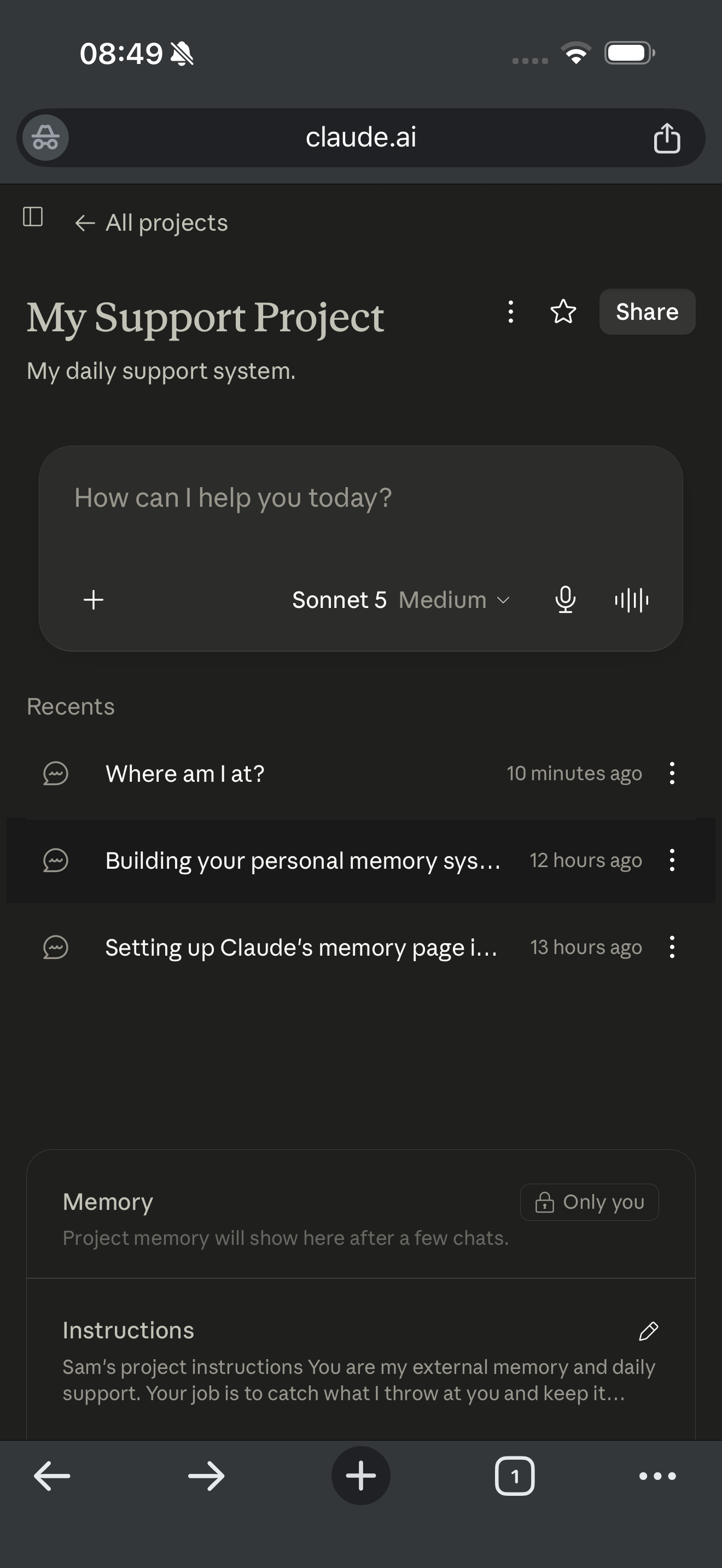
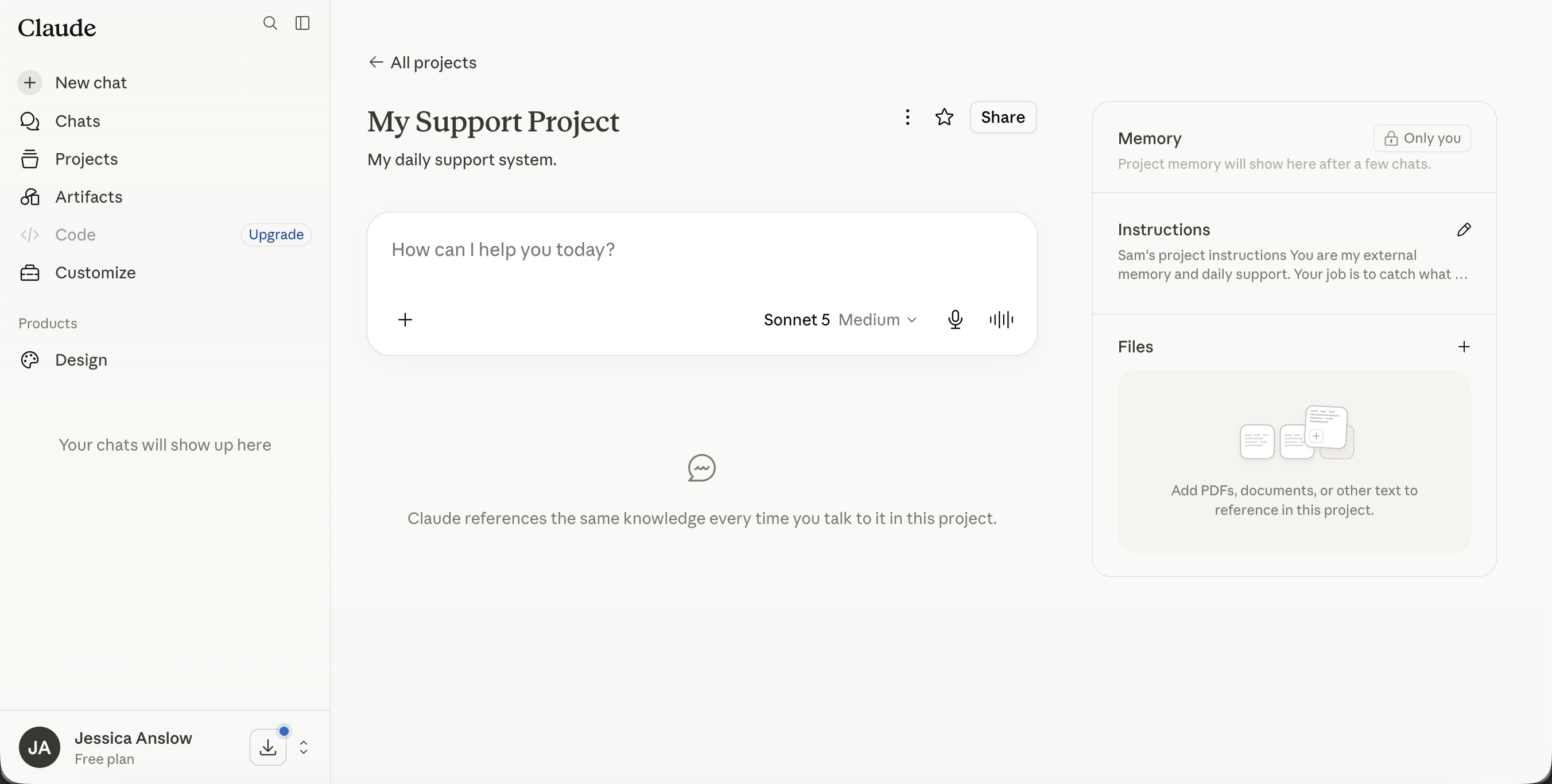
A project with your name on it, the Instructions card on the right showing the pasted text (with a pencil icon to edit it later), and an empty conversation waiting. Claude doesn't know you yet - that's what the first conversation is for. One more step first.
If something's off
- Can't find Projects? It may live in a slightly different spot depending on your app version - look in the main menu or sidebar. If it's genuinely absent, check you're logged in (Projects need an account, and the free plan does include them).
- Instructions won't save? Refresh and paste again - and check you're inside the project, not in a general chat.
- Your settings look different from the pictures? These menus move around as Claude updates - the settings themselves keep existing. Have a look in nearby sections, and check the guide's date at the top.